
So today, for the second time in the last of couple months, I managed to find a new resource in our Azure Environment that had been created and was left running even though it wasn’t actively being worked on. The process of getting alerted about this specific kind of thing isn’t as simple as at least I would like it to be, and it can also get very expensive very quickly, so I thought I would share.
Back in September, a co-worker was working on a proof of concept with Synapse Analytics. In the visualization below, the yellow portion of the bar indicates costs associated with resources that were brand new in that specific month. He had set up his instance on September 1st, worked a couple of days on it, and then we hit the Labor day weekend. The instance was still up, and it was costing $576 per day.

On the Tuesday after the long weekend, thankfully we took a look at our monitoring dashboard and were able to quickly touch base with him and ask him to turn things off during the hours that he wasn’t working on it, which he was able to quickly do, and the day after, the majority of that new daily cost went way. Our paying attention to the monitoring that we had saved us additional days of spend. That said, monitoring is only useful if you’re actually taking the time to look at it on a day to day basis.
The proper alerting gives us the ability to react when relevant things happen instead of depending on our ability to look at all the little things that we should be paying attention to on a daily basis. Azure provides multiple kinds of alerts to try and help, each of which try and fill a gap. Budget alerts, anomaly alerts, reservation utilization alerts and general resource alerts all have their place, and I’m sure I’ll end up covering them at another point, but none of them fit the bill in this case. For this situation, Power BI Dashboard alerts are what allowed me to push out the warning.
What we’re trying to catch are new resources that have been stood up for some reason and then potentially forgotten about. For our monitoring dashboard, we are ingesting cost data on a daily basis and for this scenario we can limit our scope to the set of resources that hadn’t ever incurred cost until the current month. Of those new resources, we look at the previous 3 days and see what the average cost per day to operate the resource. We don’t want to force ourselves to look at every new thing, but for resources that are incurring cost greater than a specific threshold per day, it’s worth asking the question as to whether this is a resource that needs to remain available, and if so, whether there are any configuration changes that could be made with affecting usability that could save money.
In order to set up the alert around this scenario, we created the relevant measure, giving us the cost per day of any new resource over the last 3 days, and then looked at the maximum of that for any one resource and added it to a card in a Power BI report and deployed the report out to the Power BI service.

Once the report is deployed in the service, you can go to that visualization and pin it to a dashboard by hovering over the visual and clicking on the pin icon. Once in the dashboard, if you hover over the tile and click on the three dots at the top right corner, you’ll have an option to Manage Alerts.
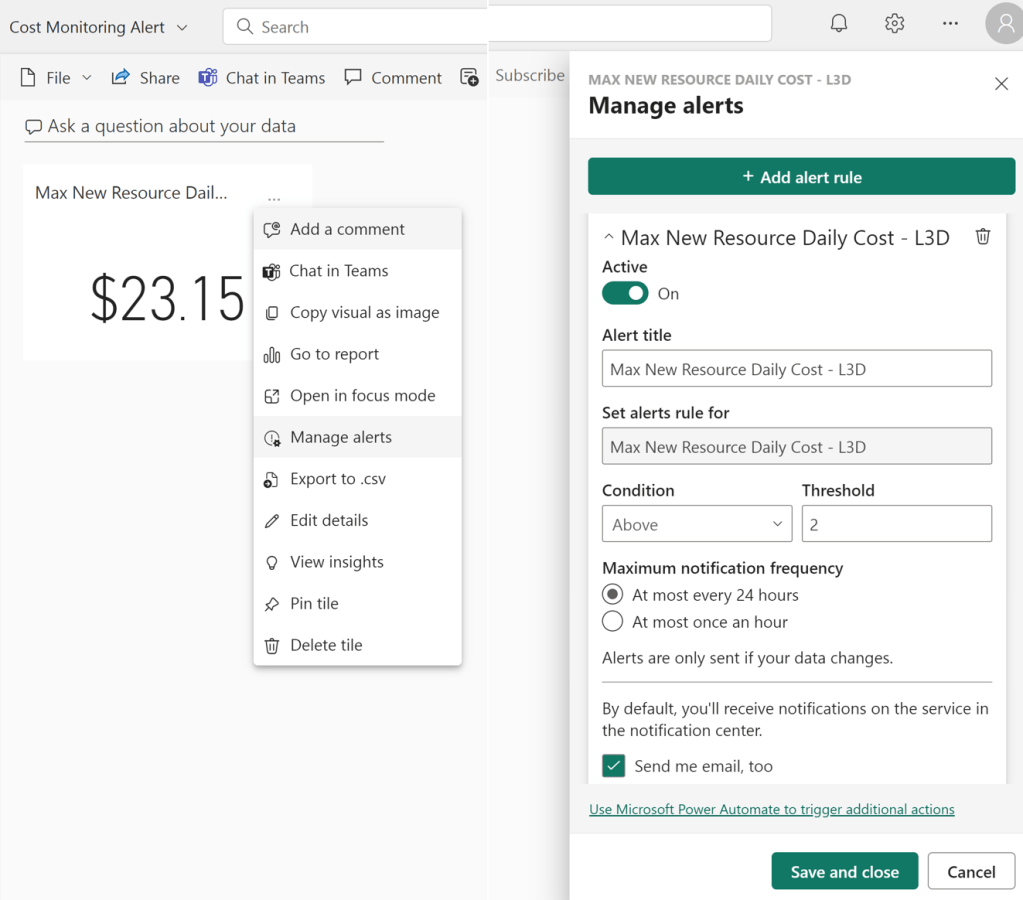
In the window that opens on the right side of the screen, you can add an alert rule and set a threshold above (which we want) or below a specific level. In our case, we are updating the dashboard when we receive our once a day set of cost data, so our notification frequency makes sense. As shown below, the alert will both show in the front end of Power BI in the dashboard on the metric as well as in the general Power BI toolbar no matter what page you are on.
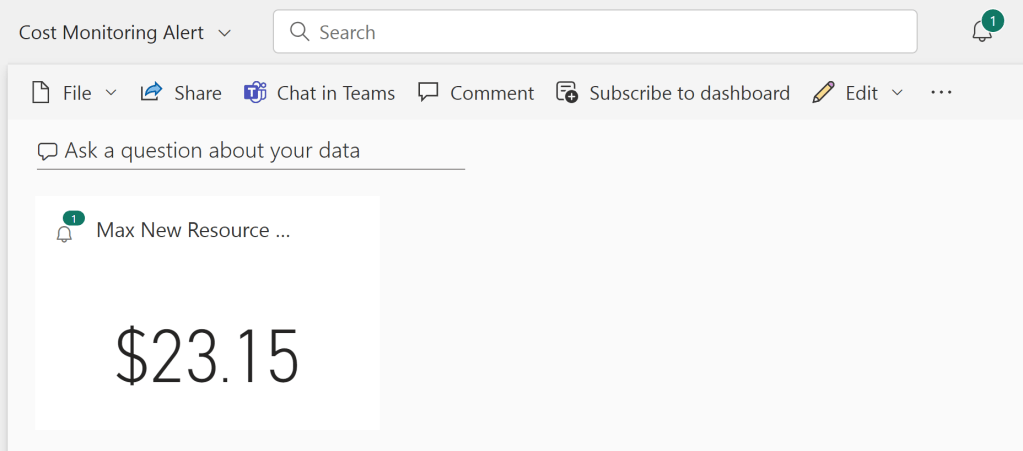
You can also, importantly, get an email to tell you as well.

With that email, you’ll have the warning you need to get you to dig in and figure out what needs to happen and prevent yourself from continuing to spend until you receive your bill at the end of the month.
 Finding Order in the Chaos
One Reply to “”